Cloud sync keeps files up to date across devices. A backup gives you a way to recover data after something goes wrong. One service can do parts of both jobs, so the useful question is not simply “Is it in the cloud?” Ask: which copy could I recover if I deleted the original, lost the device, or could not sign in?
Seeing the same photo on a phone, tablet, and laptop does not by itself establish three independent recovery copies. They may all be views of one connected library.

Three jobs that are easy to confuse
Apple’s explanation of iCloud Backup distinguishes keeping information synchronized from taking snapshots of other device data. Use that distinction when reviewing any storage setup, while checking each provider’s actual coverage.
| Job | What it helps you do | Question to ask |
|---|---|---|
| Sync a working library | See current files and changes on connected devices. | Does deleting or overwriting here also change the other copies? |
| Back up a device | Restore covered settings and data to a device. | Which apps and cloud-synced files are excluded? |
| Keep a recovery copy or history | Recover a file or earlier state when needed. | How long is it kept, and can I reach it without the original device or account? |
A cloud service can provide useful recovery features. A separate drive can also fail or hold an outdated copy. Judge the setup by what you can restore, not by the storage label alone.
What iCloud Photos, Google Photos, and OneDrive actually do
iCloud Photos is not a second copy inside iCloud Backup
When iCloud Photos is enabled, Apple says those photos and videos are not included again in the daily device backup. Other eligible device data can still be backed up. Turning on both features therefore does not create two independent backups of the photo library. See what iCloud Backup includes.
Edits and deletions in iCloud Photos propagate across devices using it. Apple describes a 30-day Recently Deleted recovery window and recommends keeping backup copies of the library. With Optimize Storage, a device may hold space-saving versions rather than every full-resolution original. Follow Apple’s iCloud Photos guidance before treating a device library as a complete offline copy.
Google Photos Backup does not make deletion harmless
Google Photos uses the word Backup for uploading photos, but its deletion rules still matter. Google says deleting backed-up items through Google Photos also removes them from devices with backup enabled. Backed-up items normally remain in the trash for 60 days; permanently deleting them or emptying the trash removes that recovery route.
Read Google’s deletion guidance for your device. A command that removes an item from the device is not interchangeable with deleting it from the library. Do not begin a large cleanup just because uploads say they are complete.
OneDrive version history can help with an overwritten file
Microsoft provides version history in OneDrive to view and restore earlier file versions, including documents and photos. Restoring a version makes it the current version, so it is an actual change, not just a preview.
Check the available history and retention rules for your account. Work or school settings may be controlled by an administrator. This is a useful recovery feature, but it is still reached through that service; it does not give you access if you cannot sign in.
Ask three questions about one folder
Start with a manageable set, such as a holiday album or a folder of household documents. Leave work-controlled data under your organization’s rules.
- If the device stopped working today, where would I get these files? Name the location and account rather than just writing “the cloud.”
- If I accidentally deleted or replaced a file, which earlier copy would remain? Check trash, history, or backup retention. Record the limit shown by your service.
- If I could not access my main account, what could I still open? A separate recovery location should not depend entirely on that same account for its sign-in or encryption key.
If an answer is unknown, that is the next thing to check. You do not need to turn sync off or move your entire library to learn how your current setup works.
Check a recovery copy without deleting anything
The Australian Cyber Security Centre recommends regularly checking that backups can be restored. Here is a small, non-destructive way to begin:
- Choose a sample. Use a few ordinary photos, a short video, and a non-sensitive document if those file types matter to your household. Note which originals you selected.
- Retrieve actual files. If you already have a backup, use its restore or download option to put the sample in a new folder, without overwriting originals. If you do not, export or copy the sample to a separate destination. Copy, do not move.
- Check the destination. Confirm the folder is on the intended drive or in the intended account. Another folder inside the same synchronized library is not independent of that library. A shortcut or web link is not the file itself.
- Open the sample from there. Open the copied document, enlarge the photos, and play the video. Check that the expected content is present, not just thumbnails. For a plain-file copy on a local drive, try opening it with the internet connection temporarily off when convenient; leave account sessions intact.
- Write down the result. Record the source, destination, date, files tested, and anything missing. A successful sample is a useful check, not proof that every file in a large library is complete.
An export may preserve files differently from the original app. Check the details you care about, such as original resolution, edited versions, dates, and album organization. Keep the source until you understand what the export contains. The family-photo backup guide covers choosing albums and making a repeatable copy.
Make the second copy independent in the ways that matter
For irreplaceable files, work toward the 3-2-1 pattern described in CISA’s backup guidance: three copies in total, on two types of storage media, with one copy offsite. Treat this as a planning target rather than a reason to postpone your first tested copy.
An external drive stored beside the laptop helps with some failures, but both may be lost in the same theft or fire. A cloud copy is offsite, but you must still understand its deletion rules and recovery access. Two services that immediately mirror each other’s deletions do not solve that particular problem.
The Australian Cyber Security Centre advises disconnecting backup media when not in use, protecting it physically, and keeping an offsite copy. It also recommends encryption and account protection where appropriate. See its backup security guidance. Keep an encryption password or recovery key somewhere secure that does not exist only on the drive it unlocks.
For cloud access, review two-step verification and recovery. If relatives need access, agree on ownership and permissions using the shared-account guide; do not make a private backup public to make it easier to find.
Decide when to refresh it
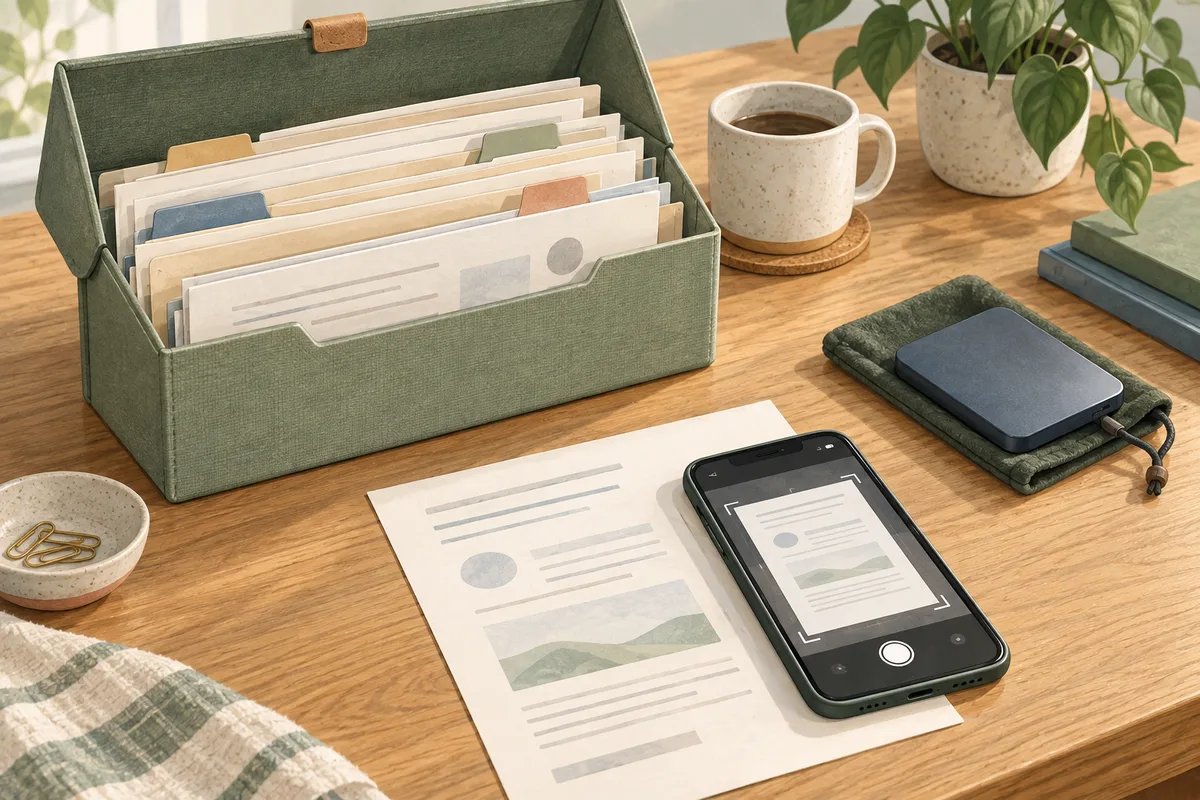
For a small collection of scans and household records, use the family-document backup guide. It covers readable files, private storage, and a check that leaves originals untouched.
A copy only contains what existed when it was made. Choose a routine based on what you could tolerate losing: frequently changing documents need more frequent copies than a collection of old scans. Keep dated copies or supported version history so the next update does not immediately replace your only earlier state.
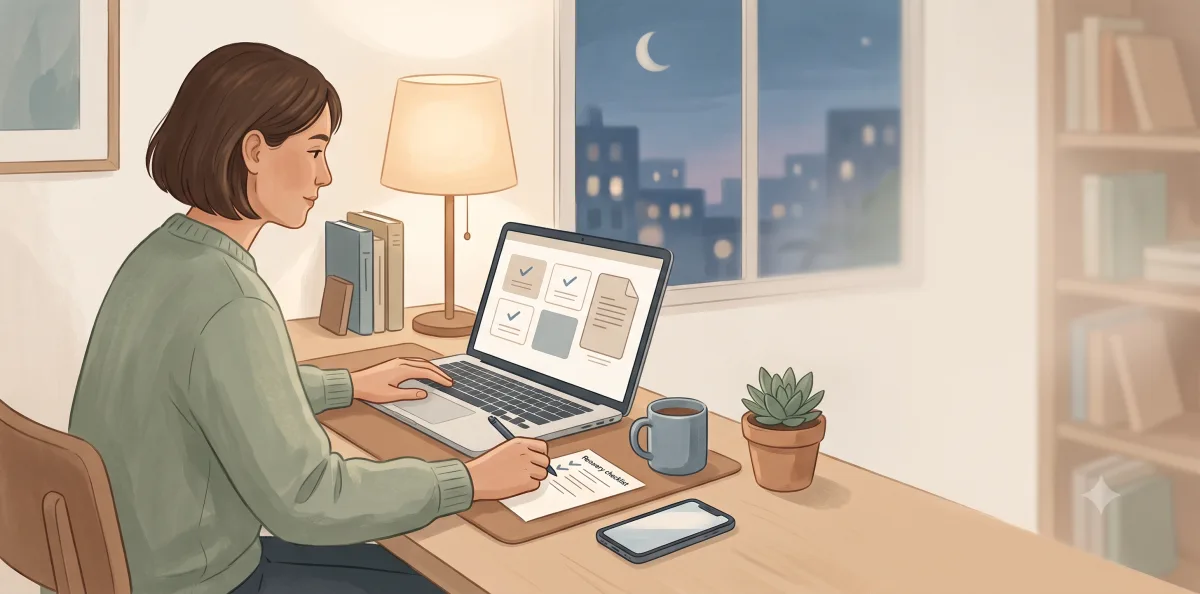
Recheck after changing accounts, switching backup services, or setting up a new phone. Record a simple owner and next review date on your household checklist, without including passwords.
You can stop today when you can name the working location, explain the recovery limits, and open a sample from a separate recovery copy. Keep sync for convenience; add recovery that matches the failures you want to survive.