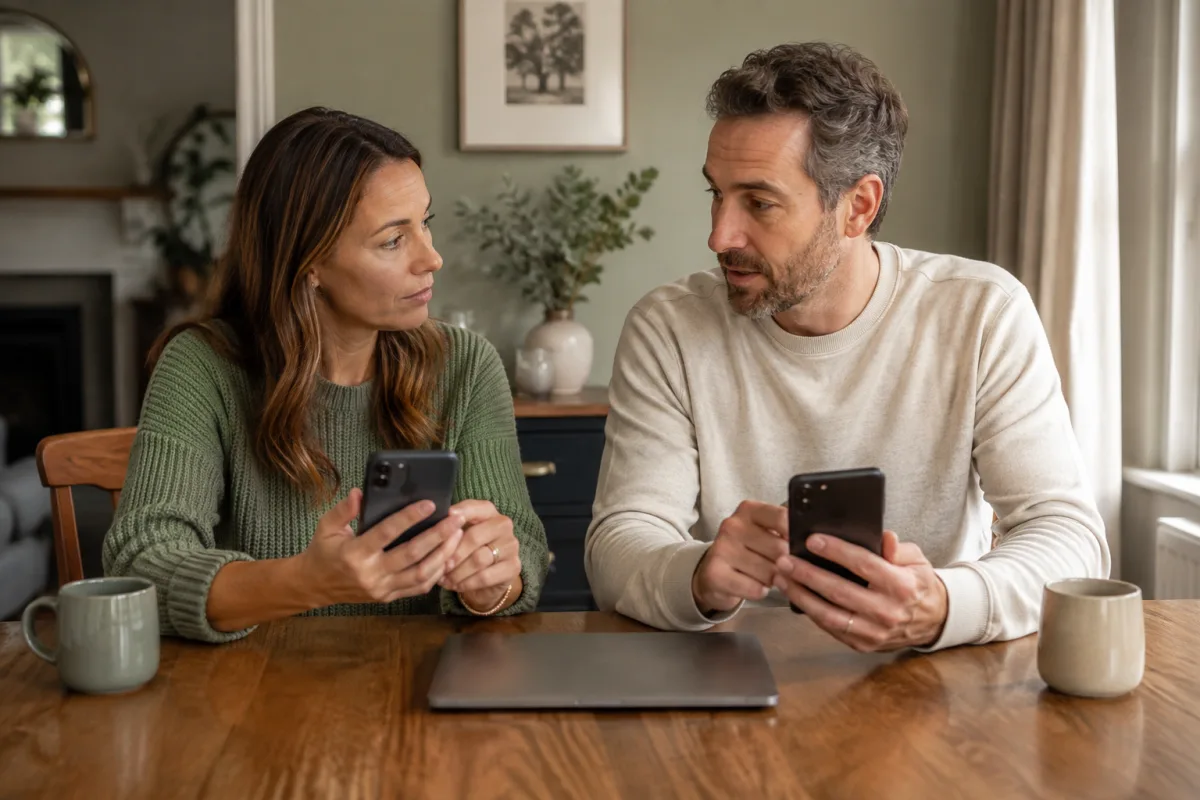

A password manager is an app or browser feature that creates and stores passwords. Instead of remembering a different password for every account, you protect one vault and let it remember the rest.
Why a password manager helps
When one password is reused, a breach at one service can put other accounts at risk. A password manager makes it practical to use a different, long password for every account.
It also reduces the pressure to invent passwords you can remember. The manager can generate one, save it, and fill it only on the right site when you approve the sign-in.
The vault is important, but it is not magic. Anyone who can unlock it may be able to reach many accounts. Treat its main password, recovery method, and signed-in devices as carefully as you would your main email account.
Choose a starting point, not a perfect product
You can begin with the password manager built into a device ecosystem or browser, or with a separate service. The right first choice is one that everyone using it can understand and keep access to.
Before adding passwords, check these practical questions:
- Can you use it on the phone and computer you normally rely on?
- Does it let you create long, unique passwords?
- Can you turn on two-step verification for the vault?
- Do you understand what happens if a device is lost or replaced?
- Does it offer a safe way to share one login only when that is genuinely needed?
Do not choose based on a single feature list. Read the provider’s own explanation of sign-in, device access, recovery, and sharing before moving an important account.
Protect the vault first
Create a long, unique main password or passphrase for the vault. Do not reuse the password from email, banking, or any other account. A memorable phrase made of several unrelated words is usually easier to type accurately than a short, complicated-looking password.
Then turn on two-step verification if the manager offers it. Save any recovery codes in a place separate from the everyday phone or the vault itself. Our recovery-code guide explains a simple way to do this.
Before you continue, write down—without writing down the main password itself—where the recovery codes are kept and which trusted person should know that location in an emergency.
Start with one low-stakes account
Do not begin by changing the password for your main email, bank, or the account that recovers the vault. Choose an account that matters less but that you use often enough to practise signing in.
- Go to the service through its usual app or web address. Do not follow a password-reset link in an unexpected message.
- Sign in normally and open the password or security settings.
- Let the password manager generate a new password that the service accepts.
- Save the entry with a clear name and the correct website address.
- Sign out, then sign in again using the saved entry.
Keep the previous trusted session open until the new password works. If the manager offers to save more than one entry for the same account, remove only entries you know are old or incorrect.
Give each family member their own access
First decide which services need shared access using our guide to shared and separate family accounts.
Sharing one adult’s vault password with the whole household makes it hard to tell who can reach sensitive accounts. Adults should normally use separate personal vaults or profiles.
For a shared streaming service, utility account, or family calendar, use the manager’s intentional sharing feature if you understand it. Share only the single entry needed, not the whole vault. Do not share banking, personal email, work, medical, or identity accounts just because a sharing button is available.
If a child needs access to an account, use the provider’s family or child-account controls where available. Do not solve the problem by giving the child an adult’s main password.
Make a simple recovery plan
Every household using a password manager needs an answer to two questions: “What if I lose my phone?” and “What if I forget the vault password?”
Check the manager’s official recovery instructions before relying on it. Some designs intentionally cannot reset a forgotten main password because that would weaken the vault’s protection. This is not necessarily a flaw, but it means recovery codes, trusted devices, and a documented emergency plan matter.
Test the plan while you are calm:
- Confirm you can sign in on a second trusted device, if you have one.
- Check that two-step verification and recovery codes are current.
- Review the vault’s device list and remove a phone or computer you no longer use.
- Decide where the recovery information is stored and who can find it if you are unavailable.
Do not store the only copy of the vault password in a notes app on the same unlocked phone. If you choose to write down a recovery clue, make sure it cannot be used as the password by someone who finds it.
Watch for lookalike websites
Autofill can be helpful, but pause if the manager does not recognise a site where you expected it to. Check the address in the browser, especially before entering the vault password or a one-time code.
Use the official app or type a known address when changing important passwords. A message that creates urgency is not a reason to hurry through a sign-in screen.
For more help with the accounts that can unlock everything else, start with our account-protection guide.
Your sensible stopping point
You are done for now when the vault has a unique main password, two-step verification is enabled where available, recovery information is stored separately, and one low-stakes account works from a saved entry.
Next, use the manager for your main email account only after you have checked its recovery details. Then continue with two-step verification without getting locked out or passkeys for families.